• Skip to primary navigation
  • Skip to main content
  • Skip to primary sidebar
TheWayoftheWeb

TheWayoftheWeb

Content and Digital Marketing Specialists

  • Blog
  • The Cipher
  • About Us
    • Useful Resources For Businesses In Peterborough, UK
  • Contact Us
  • Show Search
Hide Search

Blog

Digital People in Peterborough Event: April 10, 2014

March 31, 2014 By Dan Thornton

After a bit of a break, Digital People in Peterborough is back with a very cool event on Thursday April 10, 2014.

eic_april2014_banner
Digital People in Peterborough – April 10, 2014

We’ve been invited to the Eco Innovation Centre in Peterborough to offer our thoughts on proposed plans for a new Digital Hub in the city!

If that wasn’t enough, we’re also being generously bribed with some food and drink for attendees, in case you need an extra reason to come along.

So it should be a good event, and an important one for the future of digital industries and creatives in Peterborough. And we’re generally a nice and friendly bunch, so you’ll feel welcome whether you’re a blogger, website owner, eCommerce expert, creative, marketer, developer, database admin, designer or inventing your own job title.

Best Business Social Media and Blogging Guidelines

February 9, 2014 By Dan Thornton

Social Media policies and guidelines are vital for every business and employee. Not only are they helpful in ensuring that everyone in a company understands what is expected of them, they can also be a way to empower your employees to feel comfortable and confident in engaging with customers or clients via social media.

Rather than relying on the efforts of a small group of individuals to monitor, engage, interact and report on all activity across the plethora of social networks, blogs, wikis, forums and other locations, a good social media policy or set of guidelines means that the workload can be shared, and the responses can be crafted by those in the best position to respond with the right knowledge on a subject. That also cuts down on response times, as it avoids having to spend time internally contacting the right people within your business and obtain an answer.

Even with a small business, it’s good practice to instill the right guidelines and policies early on. That way you are already building a strong brand image and reputation, and new employees as you grow will pick up the right methodology by example as well as by instruction.


List of Social Media Guidelines and Policies:

Company NameDocument NameLink
AFPGuidelines for using social mediahttp://www.afp.com/newsletter/new-social-media-guidelines.pdf(PDF)
American Medical AssociationProfessionalism in the Use of Social Mediahttp://www.ama-assn.org//ama/pub/physician-resources/medical-ethics/code-medical-ethics/opinion9124.page
BBCSocial Networking, Microblogs and other Third Party Websiteshttp://www.bbc.co.uk/editorialguidelines/page/guidance-blogs-bbc-full
Boy Scouts of AmericaSocial Media Guidelineshttp://www.scouting.org/scoutsource/Marketing/Resources/SocialMedia.aspx
Cabinet OfficeSocial Media Guidance for Civil Servantshttps://www.gov.uk/government/uploads/system/uploads/attachment_data/file/62361/Social_Media_Guidance.pdf(PDF)
Civil ServiceLets Get Socialhttp://www.civilservice.gov.uk/news/lets-get-social
Coca ColaSocial Media Principleshttp://www.coca-colacompany.com/stories/online-social-media-principles
Exeter UniversitySocial Media Guidelineshttp://www.exeter.ac.uk/staff/web/socialmedia/
FordFord Social Media Guidelineshttp://www.slideshare.net/opinionwatch/ford-social-media-guidelines-scoot-monty
HPBlogging Code of Conducthttp://www.hp.com/hpinfo/blogs/codeofconduct.html
IBMSocial Computing Guidelineshttp://www.ibm.com/blogs/zz/en/guidelines.html
Imperial College LondonSocial Media Guidelineshttp://www3.imperial.ac.uk/webguide/socialmedia
IntelSocial Media Guidelineshttp://www.intel.com/content/www/us/en/legal/intel-social-media-guidelines.html
International Olympic CommitteeSocial Media, Blogging and Internet Guidelineshttp://www.olympic.org/social-media-and-internet-guidelines
Inter-Paliamentary UnionSocial Media Guidelines for Parliamentshttp://www.ipu.org/PDF/publications/SMG2013EN.pdf(PDF)
Nursing & Midwifery CouncilSocial Networking Siteshttp://www.nmc-uk.org/nurses-and-midwives/advice-by-topic/a/advice/social-networking-sites/
OracleThe Oracle Social Media Participation Policyhttps://blogs.oracle.com/otn/entry/the_oracle_social_media_partic
RocheRoche Social Media Principleshttp://www.roche.com/social_media_guidelines.pdf(PDF)
TescoSocial Media Colleague Guidelineshttps://www.ourtesco.com/media/2013/09/social_media_colleague_guide_160913.pdf(PDF)
University of Texas at AustinSocial Media Guidelineshttp://www.utexas.edu/know/directory/guidelines/
Thomson ReutersSocial Media Guidelineshttp://thomsonreuters.com/site/social-media-guidelines/
University College LondonSocial Mediahttp://www.ucl.ac.uk/social-media
University of MichiganGuidelines for the use of social mediahttp://www.voices.umich.edu/docs/Social-Media-Guidelines.pdf(PDF)
University of YorkSocial Media Guidelineshttp://www.york.ac.uk/admin/hr/resources/policy/social-media-guidelines.htm
WalmartWalmart's Social Media Guidelineshttp://corporate.walmart.com/social-media-guidelines


WordPress Automatic Updates – Good or Bad?

February 5, 2014 By Dan Thornton

Automatic updates were introduced to WordPress with the 3.7 Basie release, but the debate about them has been re-ignited as they recently came into effect for a large number of users who found their websites moved from 3.8 to 3.8.1 without any prior notification.

As much as I like and respect his WP knowledge, I’m forced to disagree somewhat with Rhys Whynne’s article, which says they’re an unqualified good thing, and side with the view he references from Marj Wyatt. The way that automatic upgrades have been implemented without any easy controls for website owners means that many people will need to either install an extra plugin or add code manually to stop their sites from being changed without their knowledge.

WordPress-Automatic-Updates

WordPress Auto Updates: The Benefits

There are several positives to having automatic upgrades for security reasons and minor releases. The first is that many, many people around the world are using outdated versions of WordPress and associated plugins which is a major security risk for them. Outdated software is a great way to invite hackers to easily get into your site, particularly if it allows them to use widely accessible and known vulnerabilities which can be hit in bulk.

And having worked with the large number of sites we develop, host and manage for clients, I can say that most are updated infrequently at best.

It also means that users aren’t paralysed by fear when given the option to upgrade. It also saves the cost of paying for anyone to simply have the confidence to perform a site back up and click yes to upgrade (Which is why we’ve always installed auto-backup tools for clients).

In terms of connectivity, even if the WordPress server has issues during the upgrade process, it won’t affect your site. If it fails, the site falls back to the normal state anyway.

And although I personally like to have as much control over any software updates and upgrades, in terms of trusting the intentions of WordPress, I’m more comfortable with an open source and fairly open organisation having the right aims than many of the other software platforms and products we all use on a daily basis.

WordPress Auto Updates: The Problems

So why wouldn’t I just recommend everyone lets Automatic Updates do their job?

Firstly, there is an ownership issue. Although I accept Rhys’s point that auto updates will reduce security issues for which WordPress could incorrectly be blamed, the fact is that the websites being updated are not the property of WordPress, are not on WordPress owned servers, and aren’t the responsibility of WordPress. Unless they’re also intending to come and help if I make a mistake while I’m tweaking some CSS as well?

But more importantly from a day-to-day practice is that minor updates can have major consequences. Although plugins and extensions should be designed and built in a way which means minor updates don’t affect them, that’s asking third party developers to predict the future. And the further you extend WordPress, the more risky it is.

Plus the time, resource and financial cost of ensuring everything is working can be problematic. It requires every third party supplier to be ready for every beta test and notification of an impending update, and to be able to test every single product they list prior to the update occurring.

Having worked with plugins like Jigoshop, that means not only the Jigoshop core plugin, but potentially checking tens of themes and hundreds of extensions, which have been created by a large number of suppliers.

The majority of people involved in that project, and many others, are making that effort, but it takes time and co-ordination – with an almost infinite combination of hosting, server setup, conflicting plugins and extensions etc.

And when we update a site, we always schedule it for the time which causes least disruption to site owners and their customers. That’s difference for every business, so there’s no way for WordPress to achieve this without looking at the website analytics for 1 million+ websites at a time.

That’s why I believe it’s wrong to have introduced Automatic Updates without any manual controls for a user or administrator which don’t require either coding or installing yet another plugin.

WordPress Auto Updates: Our Advice

One thing we can all agree on – make back ups of your site often. Rhys recommends once per day, which we’d recommend for sites which are critical to you and your business, although it’s really a question of how much you’re prepared to loss in a disaster versus the cost of storage space.

If your site is fairly simple, using core WordPress functionality and a handful of plugins, then Auto Updates are pretty much fine. For instance, I have no issue with having them enabled on www.danthornton.net as it’s a personal blog with very few tweaks or plugins.

If your site is complex, and uses substantial plugins or extensions, then we’d recommend turning off Auto Updates, which is what we’ve done for various clients. We’re not willing to let anything be changed on those sites without the opportunity to test and double check it.

If your site access is essential for your business, then we’d recommend turning off Auto Updates. Although maintenance mode passes very quickly, you want to be able to experience any issues at a time when you least disrupt customers and you’re on hand to fix any issues, rather than while you’re in a meeting, on holiday or sleeping.

WordPress Auto Updates: Turning them off

There are two ways to re-assert your control if you want to disable or restrict the automatic updates. The first is to edit the code on your site, and the instructions are available on the WordPress Codex. The second is to use one of the various plugins which have sprung up to offer similar functionality, such as ‘Update Control‘.

So far we’ve yet to test the plugin options, and have installed the manual option across a range of client sites to avoid adding plugins which shouldn’t be necessary.  Essentially you’re then updating an additional plugin to cope with the update functionality WordPress introduced to avoid having to update so often.

Lessons from a Google Hangout – State of Digital’s Future of Search

January 16, 2014 By Dan Thornton

The Future of Search was discussed in a live Google Hangout organised by State of Digital today, and I was honored to be one of the people involved in the debate.

It was great to be chatting with Dixon Jones, Gianluca Fiorelli, Krystian Szastok, Russel McAthy and Tim Stewart.  And Bas van den Beld did a great job of organising, hosting and moderating it all, including feeding in some good questions from people watching the hangout live. The ‘behind the scenes’ chat also helped everyone to cover all the topics raised, as well as distracting the less confident among us from worrying about our appearance or occasional fluffed sentence over the course of 90 minutes.

So overall it was great, I learned a lot just from chatting with everyone else involved, and I’d love to do more.

But having written a quick guide to Creating and Sharing Videos Online, there were some obvious mistakes I made in preparing…


Google Hangout Guide:

The organisation was handled by State of Digital and Bas, who did a good job in herding us all into the right place at the right time, and managing the muting of mics for everyone who wasn’t speaking. It’s important to make sure everyone involved turns up a little bit early to make sure they get access, have functioning video and audio (e.g. Tim’s blurrycam), and they also know how to access any backchannel, such as Google Hangout’s chat functionality.

What could I have done better?

Appearance:

Overall, I didn’t do too badly. I’m no Tom Cruise, sadly, but I’ve found it’s vital when speaking live or on video to feel confident in how you look and what you’re wearing. In this case, an Open Rights Group T-shirt which remained out of shot…

The other thing to remember is to check for all potential embarrassments such as unwanted nose or ear hair, errant bogeys, bits of lunch etc, etc.  Five minutes before shooting can save a lifetime of internet mockery.

Lighting:

Fail here. Despite the fact I know how important lighting is for video, and I actually rent my house from a professional video editor, the lighting in my home office is crap for filming. It’s easily solved with a couple of decent and cost effective lights. And now I have the impetus to invest, as I did look slightly pale and blue. Fine for an extra in Buffy The Vampire Slayer, but not ideal…

You can spot the people who put a little more thought into their lighting arrangments (Bas, Gianluca, Krystian).

Posture and Seating:

Not too bad. I was basically using my laptop on my desk and sat in my office chair. So it was serviceable, but not necessarily comfortable or relaxing – I think it was Gianluca who moved to a sofa part way through the hangout.

In the future I’d aim to have a more comfortable and relaxed place to sit, and somewhere where I’m not looking down at the camera (I wasn’t the only person to pick up on the inherent risk of a double chin looking down). It also meant I was only seen from the neck up, which was fine for this particular chat, but might be rather boring if I was hosting something on my own for a few minutes – all you’d see is my head, without any body language or movement.

Audio/Visual:

Not too bad. My Creative ChatMax HS-720 Headset worked well considering it’s under £30. And if I’d picked a better angle and lighting, the actual quality of the video feed is reasonable.

For shooting more videos, I think it will be worth investing in a good quality external webcam, so I can be more flexible with where I place it, and potentially a good quality external mic as well – the ChatMax works well for chats like this where I need to hear the other people, but if I’m recording a screencast etc, I’d like to have a little more audio quality.

Plus I keep meaning to record myself playing guitar etc to see if I’m improving, so that’s another reason for an investment…


Google Hangouts: Worth doing?

I’ve talked to a couple of clients about organising Google Hangouts with experts in their respective fields and I definitely think it’s worthwhile. One of my earliest jobs online was to organise celebrity web chats in a text only chatroom – the ability to have a panel of speakers, and easily sharable recorded video, makes this much easier and more effective.

As long as the content is interesting, the production quality is secondary, and by having multiple people involved it seems to average out the best and worst.

In the tech world, Hangouts have become a staple part of internet content. And the blogging community has also picked up on them as a great way to connect, discuss and share conversations and content.

Web Design: Creating a Favicon for your site

January 1, 2014 By Dan Thornton

Launching or re-designing a website or brand involves a lot of work. Whether you’re doing everything yourself or outsourcing to an agency like us, there’s a big checklist of images and assets to be created and uploaded. That includes all the imagery required for social networking profiles, but often an important but small part of website branding can be overlooked.

What is a Favicon?

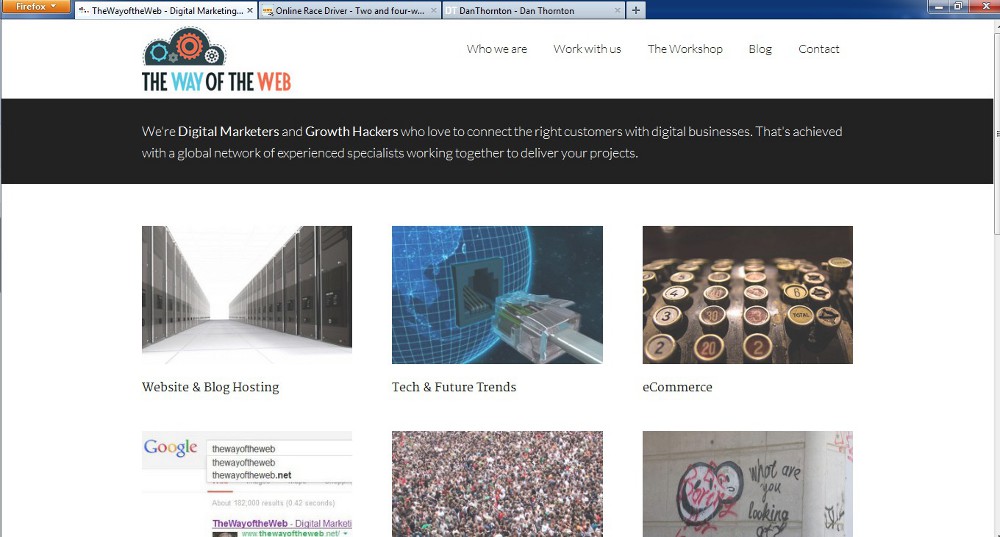
A Favicon is the name given to the image which appears in locations relating to your website, such as an internet browser. It generally appears at a small size, just 16 x 16 pixels in the address bar and browser tab. But it’s important both in terms of usability for people to navigate to the right place when they have multiple tabs open, and also for branding and recognition.

If you’re using various popular CMS systems or website frameworks, you’ll also find that their developers use their own favicon by default, meaning that you’ll look less professional until you create your own – in the meantime you’re advertising their software and also displaying to customers and competitors what you’re using.

CreatingAFaviconExamples
Favicon examples from TheWayoftheWeb, OnlineRaceDriver.com and DanThornton.net

The good news is that any designer or developer should be aware of the need for a favicon. It’s certainly something we provide as a matter of course. It’s also relatively simple to create and upload for yourself if you are following a DIY approach or fancy making some changes.

Creating a favicon:

To generate your favicon you can either use any graphics or image editing software, or there are various online tools such as Faviconer.com, favicon.co.uk or Dynamic Drive.

We use either Photoshop, or the free, open source alternative, GIMP to create the image. Generally we start with a 64 x 64 pixel square to make it easier to edit and avoid issues when scaling down. Then when we’re happy, we’ll adjust the image size to 16 x 16 pixels.

It’s important to remember how small the favicon will be when displayed in a tab – in the case of this site, we considered that our logo was more important and recognisable than reworking the site logo to be bigger. The same held true for our gaming site OnlineRaceDriver.com, but I don’t have a logo for my personal blog, so I decided to pick my initials.

If you’re looking for inspiration, just take a look at what your favourite sites use.  When designing website assets for clients we’ll include the favicon as part of the package, along with website logos, social media images etc.

When you’re happy with your work, you just need to save the result as favicon.ico. (It’s listed in GIMP as ‘Microsoft Windows icon).

Uploading your Favicon:

Some CMS systems, such as Magento, allow you to upload your favicon directly. All you need to do is visit System > Configuration, and then look under General to find Design and the HTML Head section.

For WordPress various plugins exist to offer similar functionality, but it’s actually fairly easy to upload your new favicon yourself. That way you avoid adding extra software to your site, and having to download updates etc, for the sake of a task you might only ever do once every few years.

After creating a favicon.ico and saving it to your desktop you’ll need to login to your website hosting either via your website host and any FTP manager they provide, or via your own FTP Client (e.g. Filezilla).

First navigate to the Theme you’re currently using for your site, and when you can view all the related files, remove the existing favicon.ico file and upload your creation.

You can also upload an additional copy to the main directory of your site, e.g. https://thewayoftheweb.net/favicon.ico to ensure the icon also appears in RSS feedreaders and other locations.

Finally if you want to be compatible across some older internet browsers, you may also wish to edit the header of your page.

  • Go to your WordPress Administration Panel.
  • Click on Appearance.
  • Click on Theme Editor.
  • Select the file called Header or header.php to edit the file.
  • Search for the line of code that begins with <link rel=”shortcut icon” and ends with /favicon.ico” />. Overwrite it, if it exists, or add the following code below the <head> HTML tag.
    <link rel=”shortcut icon” href=”<?php echo get_stylesheet_directory_uri(); ?>/favicon.ico” />
  • Save the changes

And that’s it. When you’re making code changes, we’d recommend using a copy of the existing code and making sure you have a backup in the case of any problems.

You should start seeing your new favicon fairly quickly, although sometimes it can take some time to display due to various cache settings – generally more modern browsers are faster.

  • « Go to Previous Page
  • Page 1
  • Page 2
  • Page 3
  • Page 4
  • Page 5
  • Page 6
  • Interim pages omitted …
  • Page 224
  • Go to Next Page »

Primary Sidebar

Join us…

  • Facebook
  • Instagram
  • LinkedIn
  • RSS
  • Twitter

We only exist to deliver results for your business. So you get fresh Content, expert SEO, engaging Social Media, or a new Website which is right for you – and your customers.

We help you build your brand, reach more customers and increase your revenue

Search

Categories

Creative Commons License
This work by TheWayoftheWeb is provided under a Creative Commons Attribution-NonCommercial-ShareAlike 4.0 International License.

Start growing your business today Contact Us

TheWayoftheWeb

Copyright © 2026· TheWayoftheWeb Ltd. Company Number 08038527. ICO registration: ZB397650